
Table Enhancer for GitHub / User guide
Wide tables.
A little more clarity.
Keep the context. Find the rows that matter. Make room for the details. A small set of controls makes wide GitHub Markdown tables easier to read and review.
Your first table, in three steps
- Open a Markdown fileOn GitHub, open a
.mdfile containing a table and select its rendered preview. - Find the toolbarControls appear above each supported table automatically.
- Try Fit, then FreezeMake long text readable, then keep a header or label in view as you scroll.
Where it works
The extension enhances tables only on GitHub Markdown blob pages, for example:
https://github.com/owner/repository/blob/main/docs/guide.md
Tables on issues, pull requests, discussions, repository home pages, and Markdown rendered outside a GitHub blob view remain unchanged. Opening a supported preview from another GitHub page automatically applies the extension without reloading.
Meet the toolbar
Open a Markdown file containing a table. Table Enhancer places a compact toolbar immediately above each table. The table stays inside its own horizontal scroll area, preserving the surrounding GitHub page layout.
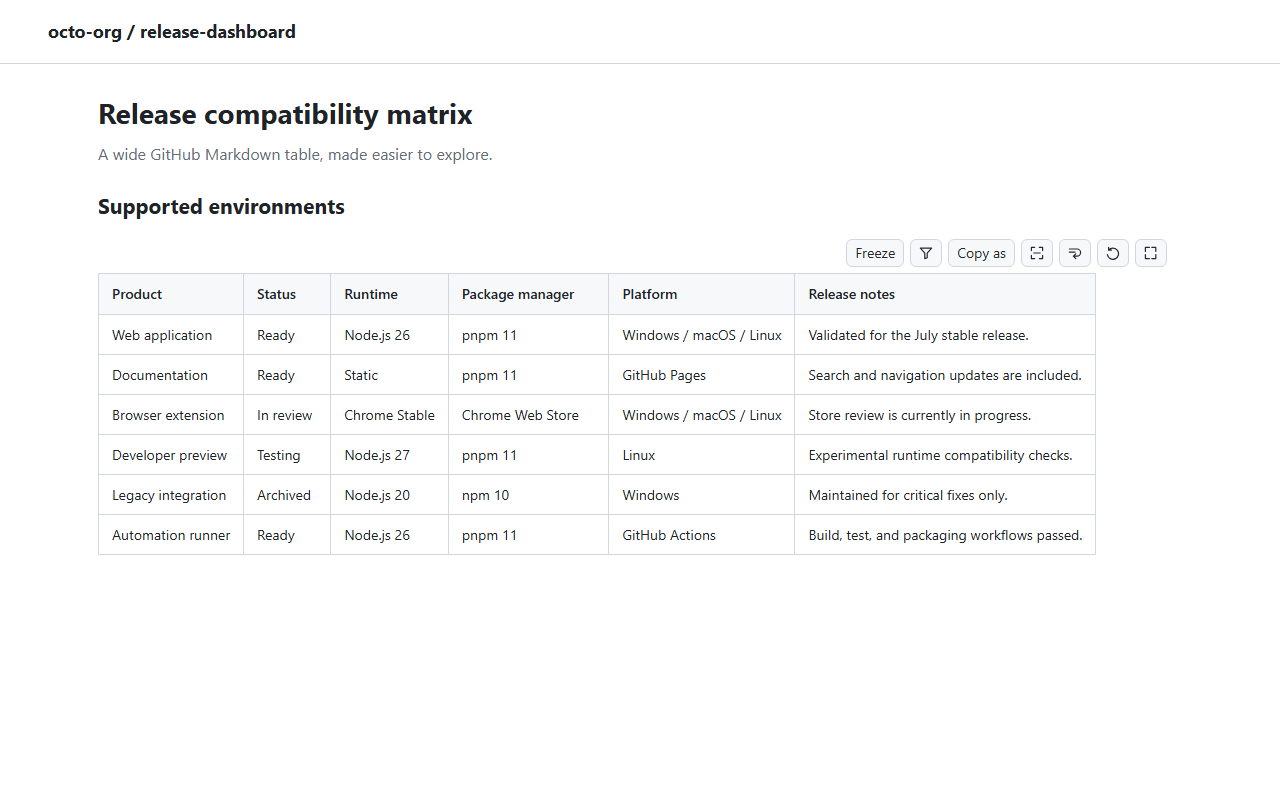
The toolbar provides Freeze, Filter, Copy as, Select rows, Fit, Wrap, Reset, and Focus mode. When rows or columns are hidden, it also shows Show hidden.
The extension UI follows Chrome’s display language. English is the default; Japanese, Simplified Chinese, Korean, Brazilian Portuguese, and Spanish are also supported. If a translated message is unavailable, the English message is shown.
Follow a row and column
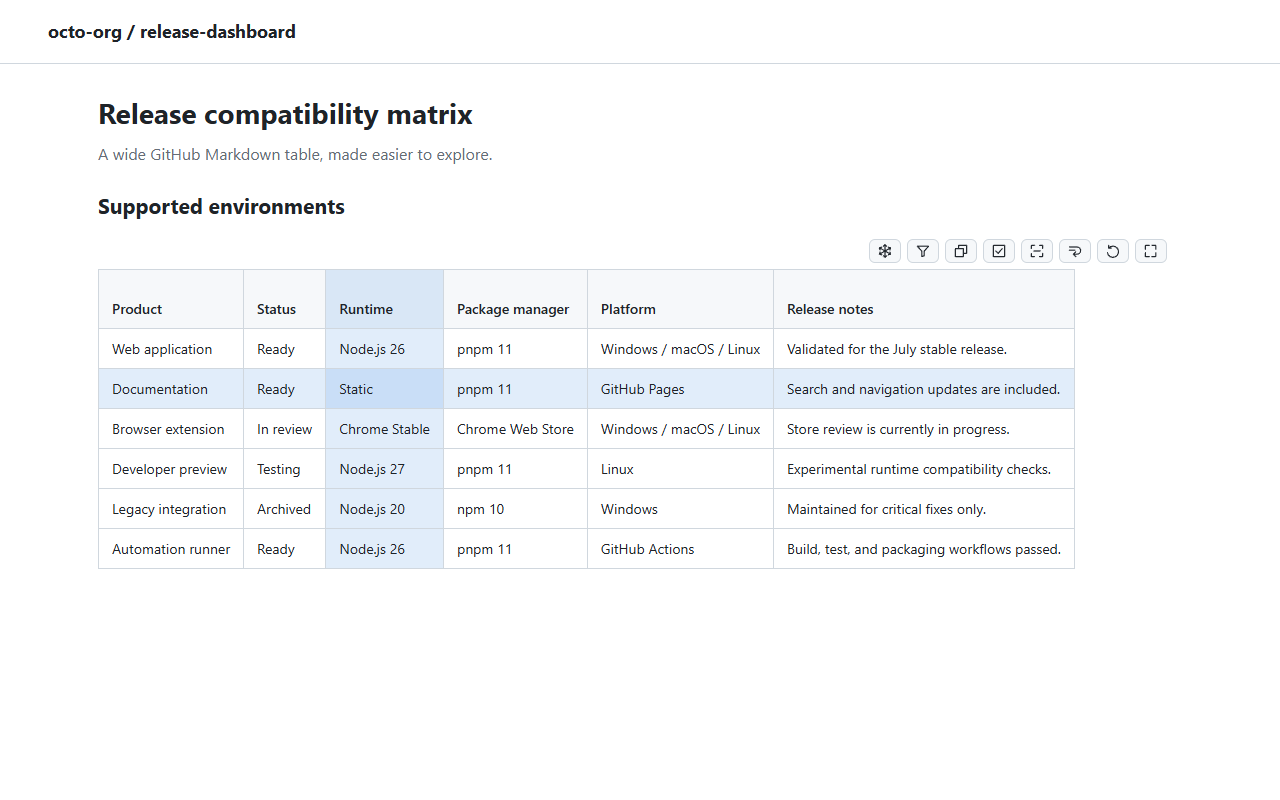
Hover a cell to softly highlight its row and column. The cell under the pointer gets a stronger tint, helping you follow wide tables back to their row label and column heading. Highlights follow scrolling and disappear when you leave the table. They work with hidden columns, sorting, frozen cells, row selection, and Focus mode, and do not change copied content or saved settings.
Freeze rows and columns
Select Freeze to keep the first displayed rows and leftmost columns in view as you scroll. Enter the number of rows and columns to freeze; use Reset in the panel to clear only the freeze settings.
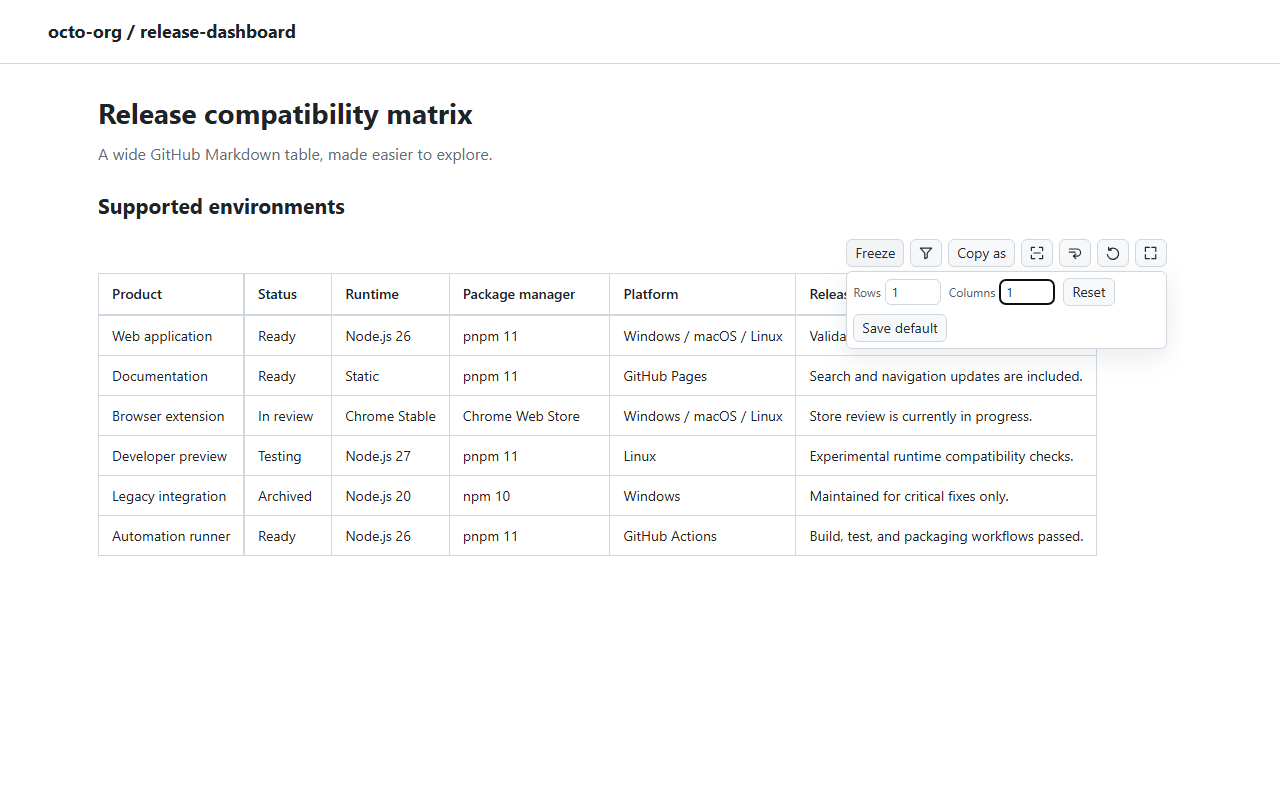
If a table has a preceding heading, choose Save default to remember those freeze values for tables under the same heading in the same GitHub repository. Defaults are stored locally in your browser and can be changed at any time; they do not apply to other repositories, even when the heading text matches.
Updating from a version with older freeze defaults?
Older defaults were saved by heading text alone. Save your default again to associate it with the current repository.
Fit, wrap, and resize columns
Use Fit to apply readable widths to the displayed columns and wrap long content. Use Wrap to turn wrapping on or off without recalculating widths. You can also drag a column edge in the header row to choose a width yourself.
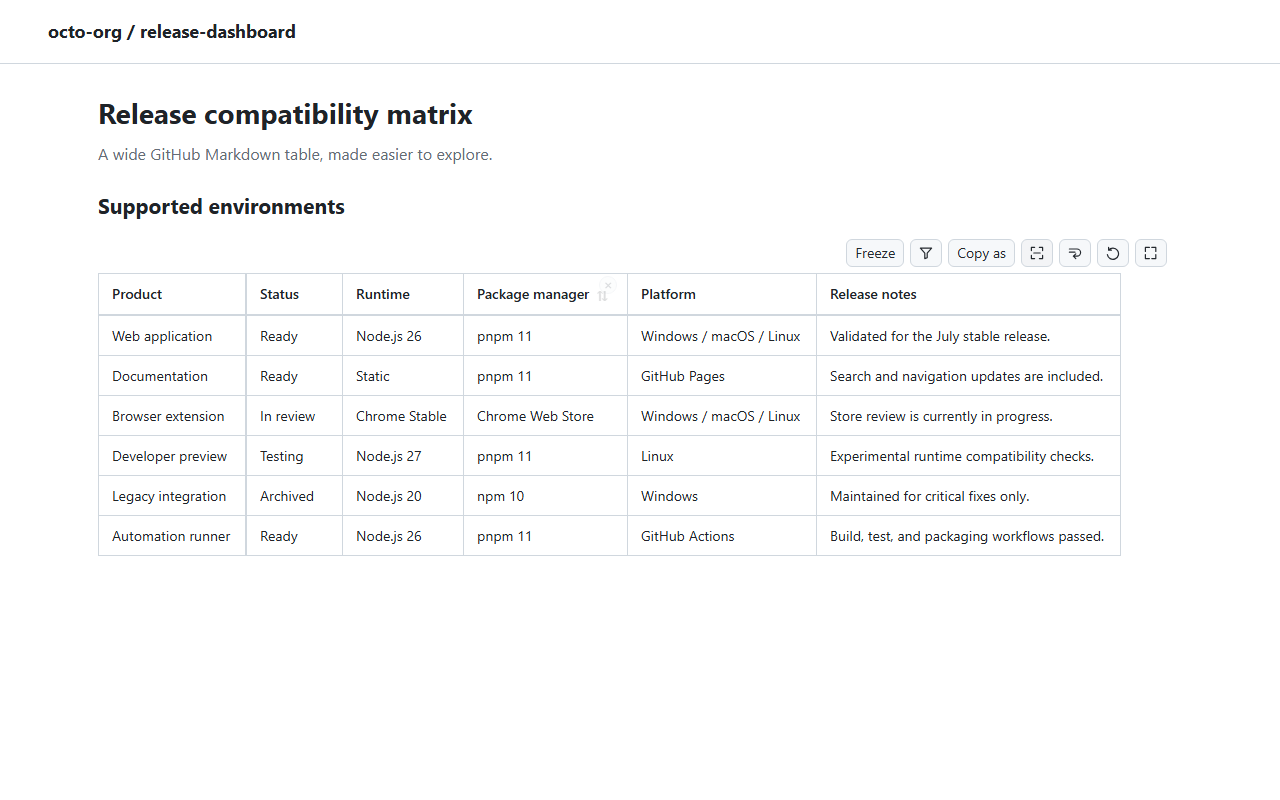
These changes affect only the current view in your browser; they never modify the GitHub file.
Focus mode
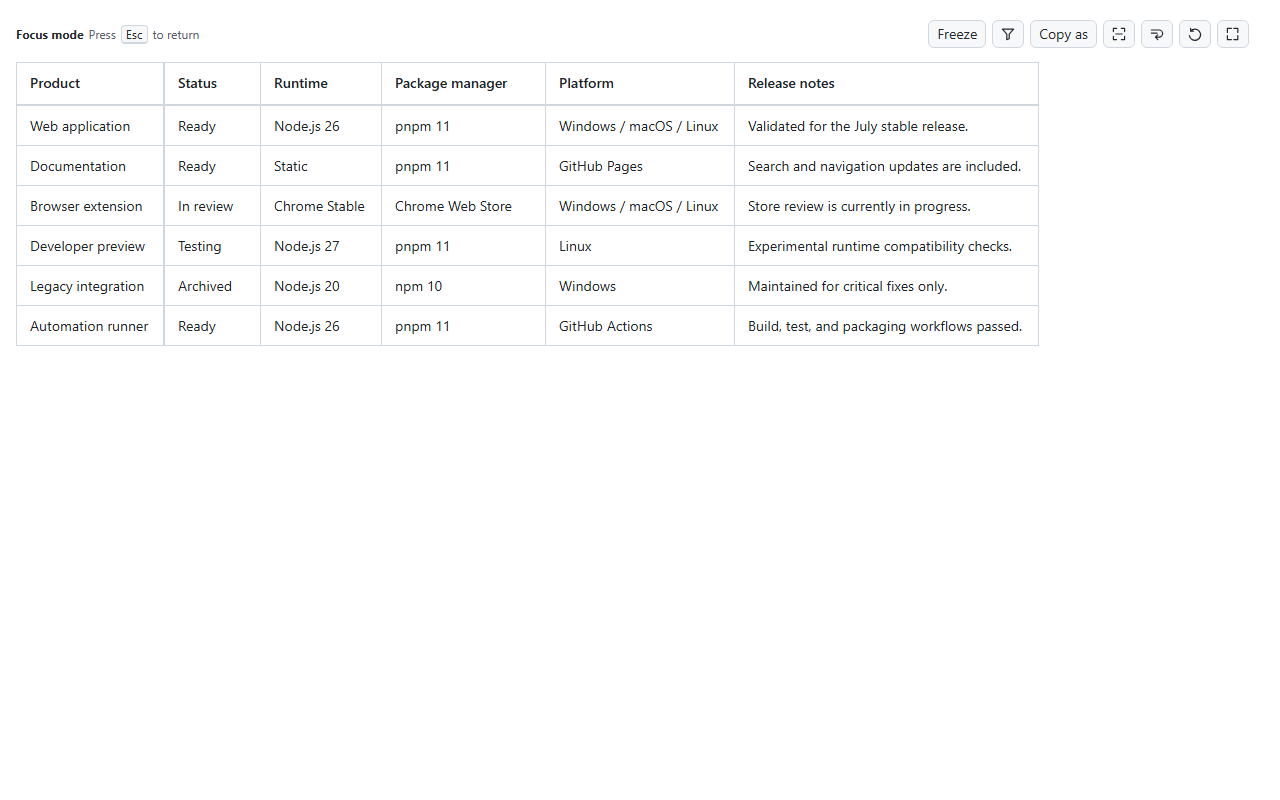
Select the expand icon to open one table in a full-window workspace. Focus mode keeps your current filter, hidden items, wrapping, widths, and freeze settings. A persistent Focus mode indicator reminds you that you can select Close or press Escape to return to the GitHub file.
Filter a table without changing it
Choose the filter icon and type a word or phrase. Matching is case-insensitive and happens immediately. Select the Use regular expression (.*) button to interpret the input as a regular expression; invalid expressions leave all rows visible and show an error. The header remains visible, and Clear filter restores all rows that were not manually hidden.
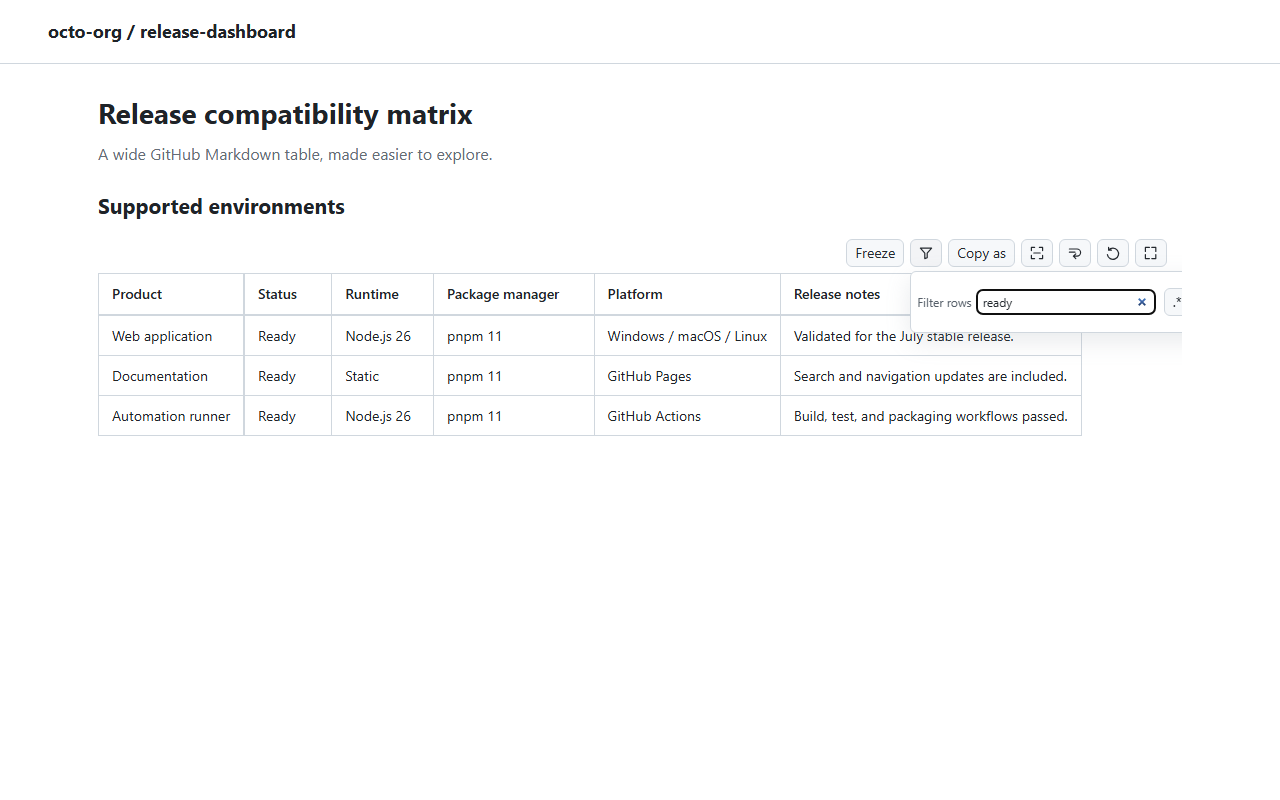
Filtering is temporary and is not saved as a default.
Sort table rows
Hover a column header to reveal its unsorted sort button, then select it to sort the table body by that column. Once selected, the ascending or descending direction remains visible. Repeated selections cycle through ascending, descending, and original Markdown order. Numeric and date-like values are compared by value; other text uses case-insensitive natural ordering.
Sort and column-hide buttons sit side by side above the header text, leaving the column edge available for resizing even when a column is narrow.
Sorting is temporary. It preserves the identity of manually hidden and filtered rows as their positions change.
Hide and restore rows or columns
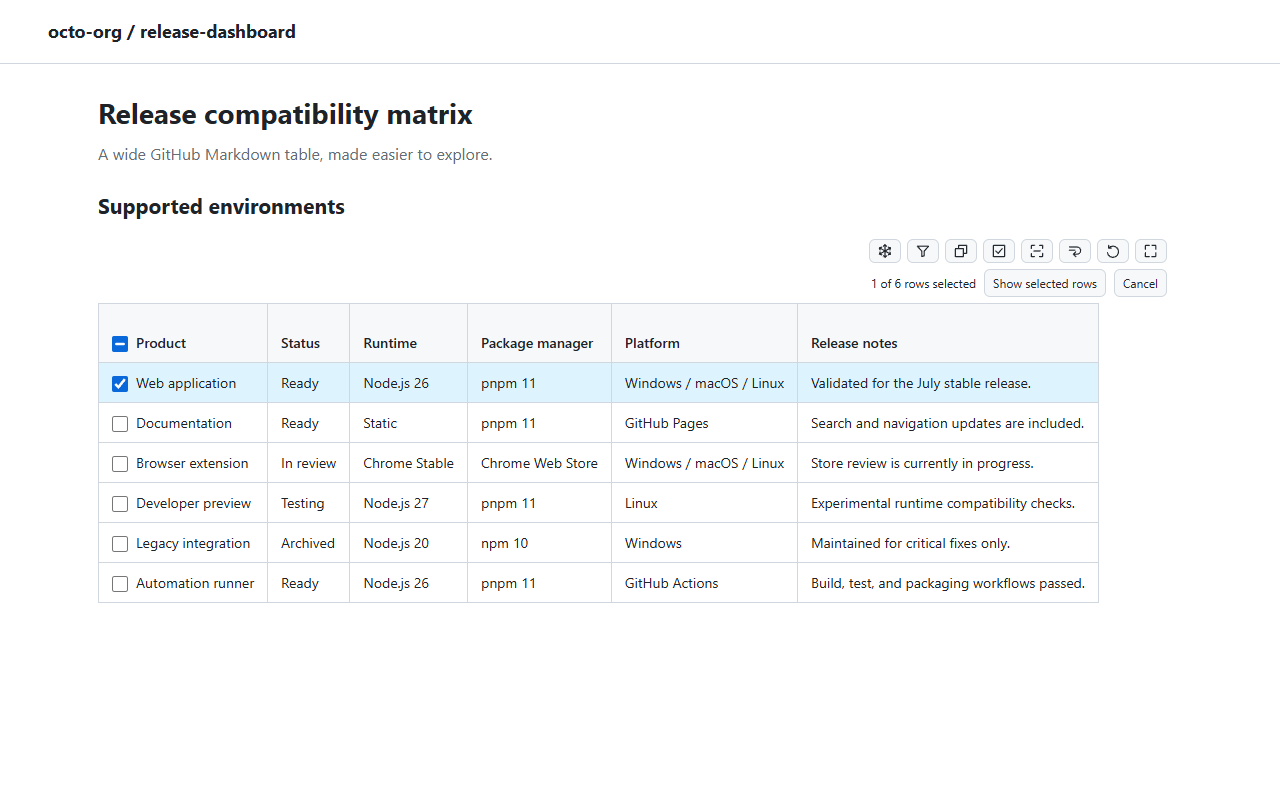
Choose Select rows to show checkboxes in the first visible column. Currently visible body rows start checked; headers remain visible. The header checkbox selects or clears all visible body rows and shows a mixed state when only some are selected.
- To keep a few rows, clear all with the header checkbox, then check the rows you want.
- To hide a few rows, uncheck those rows.
- Choose Show selected rows to apply, or Cancel / Escape to discard the selection. Rows stay visible until you apply. Applying with no rows checked hides all current body rows; Show hidden restores them.
Selection applies only to the current visible rows, preserving existing filters and hidden items. Changing the filter or hiding a column cancels an unfinished selection; sorting keeps selections attached to the same rows. Use Show hidden before selecting again if you want to include previously hidden rows.
Hover a header cell to reveal its column hide button. Hidden items are removed only from your current table view.
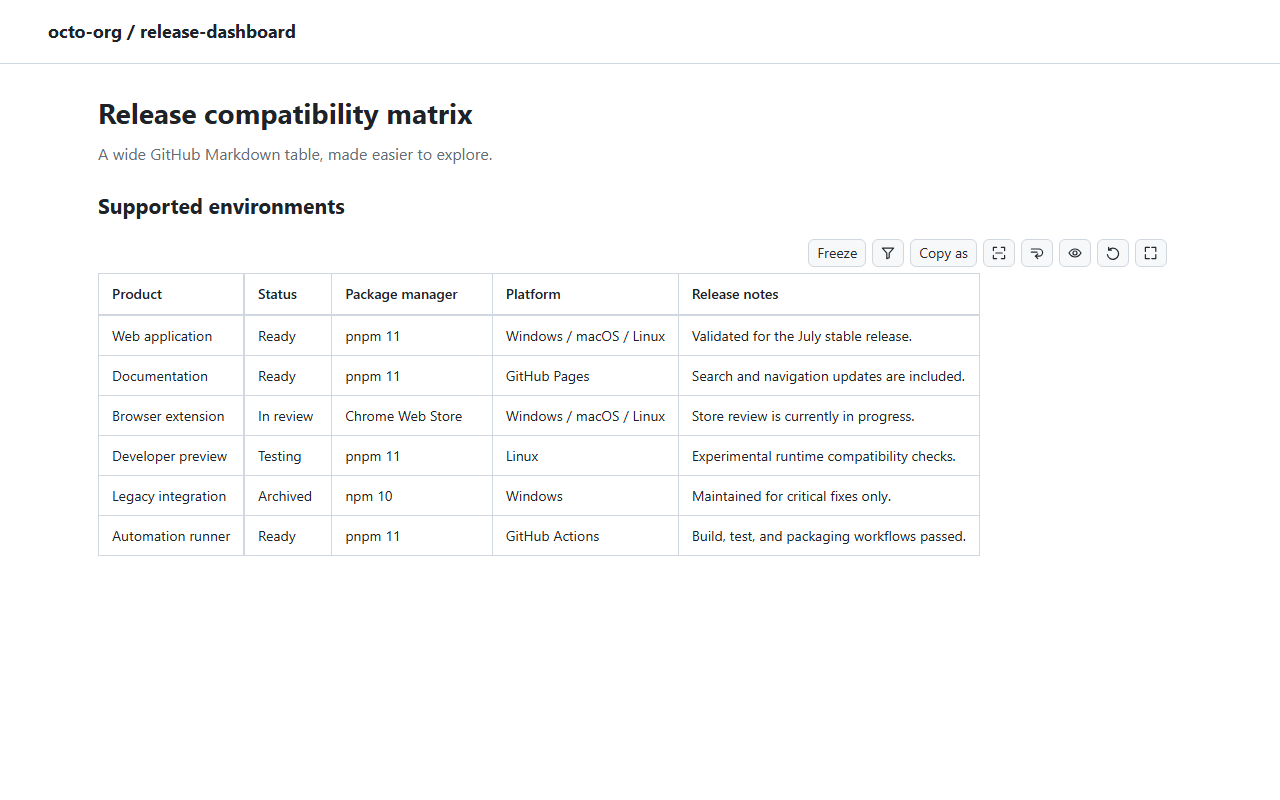
Select Show hidden to restore every hidden row and column in that table. Select Reset table view to clear hidden items along with the other temporary table changes.
Copy the view you are reviewing
Select Copy as and choose Markdown, CSV, or TSV. The copied content reflects the table as currently shown: manually hidden rows and columns, as well as rows hidden by filtering, are omitted.
This makes it easy to paste a focused subset into a comment, spreadsheet, or another Markdown document.
Reset a table view
The reset icon returns the table to its initial display state. It clears temporary filters, sorting, hidden rows and columns, wrapping, fitted or resized widths, and freeze settings. Saved heading defaults are not deleted.
Just need your hidden rows back? Use Show hidden to restore manually hidden rows and columns. Use Clear filter to bring back filtered rows. Reset table view clears both, along with your other temporary changes.
Read YAML frontmatter
When a Markdown file starts with supported YAML frontmatter, its properties appear in a collapsible Metadata panel. Select the panel heading to collapse or expand it. Short lists appear as tags; nested properties and longer lists can be expanded individually.
Why does some metadata keep GitHub’s original display?
The extension uses Markdown already loaded by the current GitHub page, without additional requests. If it cannot confirm the source or the YAML is unsupported, it preserves GitHub’s original display. Nested tables and ambiguous leading key/value tables do not receive table controls; ordinary body tables keep their usual controls.
Questions & tips
Why don’t I see table controls?
Check that you have opened the rendered preview of a Markdown file, with /blob/ in its GitHub URL. Tables on repository home pages, issues, pull requests, and discussions are not supported. Open the file itself to use the controls.
Will this change my file or save my filters?
Your source Markdown stays unchanged. Filters, sorting, hidden items, widths, and wrapping are temporary. Only freeze values explicitly saved with Save default are remembered locally for matching headings in the same repository.
Can I use the controls in another language?
The extension follows Chrome’s display language. English, Japanese, Simplified Chinese, Korean, Brazilian Portuguese, and Spanish are supported, with English as the fallback.
Still need a hand? Ask a question or report a problem on GitHub. English and Japanese are welcome.